


Viewing Today's Appointments
The Today’s Appointment dashboard gives you a real-time view of all scheduled visits for the current day. Use it as your daily starting point to check who’s coming in, prepare records, and manage walk-ins.
How to access
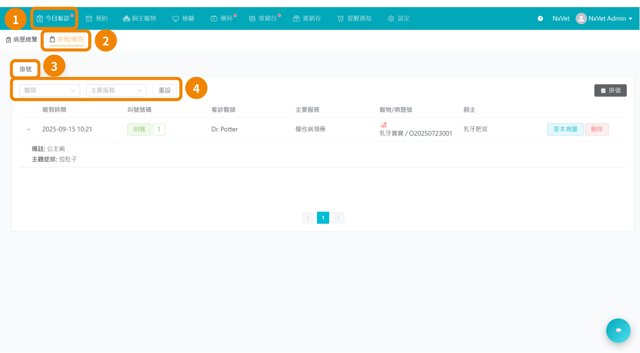
- From the main menu, go to Today’s Appointment.
- The dashboard opens to the current date by default.
- Appointments are listed in chronological order, earliest first.
What you’ll see
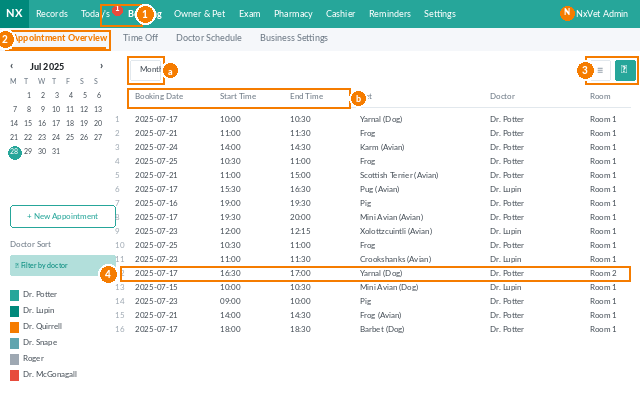
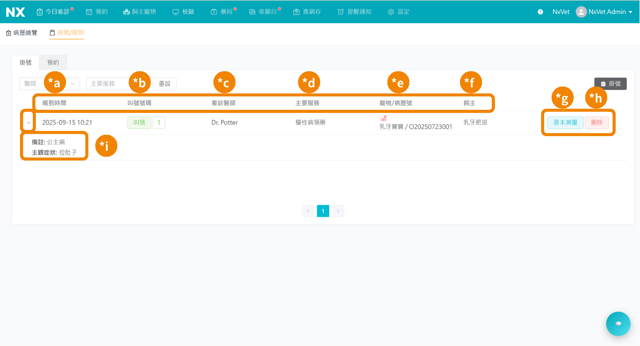
Each appointment row displays:
- Time — scheduled appointment slot
- Owner Name — the pet owner’s full name
- Pet Name & Species — the patient
- Reason for Visit — vaccination, check-up, surgery, follow-up, etc.
- Assigned Vet — the attending veterinarian
- Status — Pending, Checked-in, In Progress, Completed, or Cancelled
Filtering the list
Use the filter bar at the top to narrow the view:
- By Vet — show only appointments assigned to a specific veterinarian
- By Status — focus on Pending or In Progress entries
- By Service Type — separate routine visits from procedures
Updating an appointment status
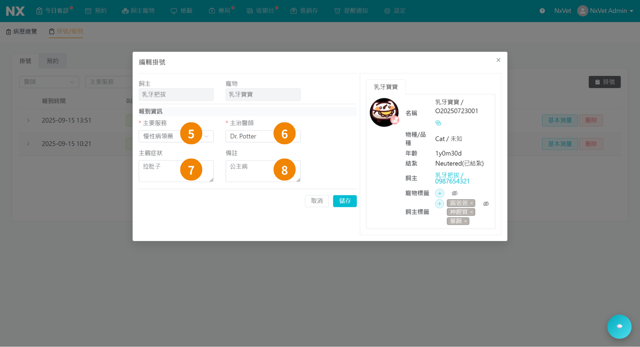
- Click the appointment row to expand it.
- Use the Status dropdown to change the state (e.g. from Pending → Checked-in when the owner arrives).
- Changes save automatically.
Tip
Keep this page open on a second monitor at reception. It refreshes automatically every minute, so front-desk staff always see the latest check-ins without manual reload.